Thursday, October 26, 2006

DirectX 9.0 L works on Vista only

UNFORTUNATELY, we were wrong about DirectX 9.0 L.

We managed to confirm the existence of DirectX 9.0L but it won't be a DirectX 10 for Windows XP. It will be the other way around. It is a faster version of DirectX 9.0 that will run under Vista only.

So I have to disappoint all of you who expected to run DirectX 10 games under Windows XP (and apologise, huh, Fudo? News Ed.) as there won't be an API to supports it.

DX9.0L is a special version of DirectX 9 for Vista only that allows DX9 games to run with Vista's new driver model. It's not possible to run D3D10 on XP without running in pure software emulation.

The D3D10 API was designed around the new driver model in Vista. In addition, Aero Glass runs on DX9.0L. Aero Glass is one of the main reasons DX9.0L exists on Vista.

Our sources also confirmed that L in DirectX 9.0 L stands for Longhorn. So we are back at the beginning - you need to buy a new graphic card and a new OS to have the hardware DirectX 10 acceleration on an API that supports it


Technorati tags: , ,

Tuesday, October 17, 2006

Network Access Protection for Windows Server “Longhorn”

Network Access Protection (NAP) is a policy enforcement platform built into the Microsoft Windows Vista and Windows Server code name "Longhorn" operating systems that allows you to better protect network assets by enforcing compliance with system health requirements. With Network Access Protection, you can create customized health policies to validate computer health before allowing access or communication, automatically update compliant computers to ensure ongoing compliance, and optionally confine noncompliant computers to a restricted network until they become compliant.

Network Access Protection includes an application programming interface (API) set for developers and vendors to create complete solutions for health policy validation, network access limitation, and ongoing health compliance.


To validate access to a network based on system health, a network infrastructure needs to provide the following areas of functionality:

Health policy validation. Determines whether the computers are compliant with health policy requirements.

Network access limitation. Limits access for noncompliant computers.

Automatic remediation. Provides necessary updates to allow a noncompliant computer to
become compliant.

Ongoing compliance. Automatically updates compliant computers so that they adhere to ongoing changes in health policy requirements.

Scenarios for Network Access Protection
Designed to provide customers with the most flexible solution, NAP can interoperate with any vendor’s software that provides a System Health Agent (SHA) and System Health Validators (SHV) or that recognizes its published API set. Examples of third-party solutions that work with Network Access Protection would be Anti-Virus, Patch Management, VPN, and Networking Equipment. Network Access Protection helps provide a solution for the following common scenarios.

Check the health and status of roaming laptops
With Network Access Protection, network administrators can check the health of any laptop when it reconnects to the company network without sacrificing the portability and flexibility of laptops.

Ensure the ongoing health of desktop computers
With the addition of management software, automatic reports can be generated, updates can be made automatically to noncompliant computers, and when administrators change health policies, computers can be automatically provided with the most recent updates preventing health threats from publicly accessible resources.

Determine the health of visiting laptops
With Network Access Protection, administrators can determine that the visiting laptops are not authorized to access the network and limit their access to a restricted network without requiring any updates or configuration changes to the visiting laptops.

Verify the compliance and health of unmanaged home computers
By using Network Access Protection, network administrators can check for required programs, registry settings, files, or combinations of these every time a home computer makes a VPN connection to the network, and they can limit the connection to a restricted network until system health requirements are met.

Components of Network Access Protection
Network Access Protection provides a flexible platform that supports multiple access enforcement mechanisms including, but not limited to:

•Internet Protocol security (IPsec) for host based authentication
•IEEE 802.1X authenticated network connections

•Virtual private networks (VPNs) for remote access

•Dynamic Host Configuration Protocol (DHCP)

Administrators can use these technologies separately or together to limit noncompliant computers. Network Policy Server (NPS), the replacement for Internet Authentication Service (IAS) in Windows Server 2003 in Windows Server "Longhorn," acts as a health policy server for all of these technologies.

Network Access Protection requires servers to run Windows Server "Longhorn" and clients to run Windows Vista, Windows XP with Service Pack 2 (SP2), or Windows Server "Longhorn."

IPsec Enforcement
IPsec Enforcement comprises a health certificate server and an IPsec NAP Enforcement Client (EC). The health certificate server issues X.509 certificates to quarantine clients when they are determined to be compliant. These certificates are then used to authenticate NAP clients when they initiate IPsec-secured communications with other NAP clients on an intranet.

IPsec Enforcement confines the communication on your network to those nodes that are considered compliant and because it is leveraging IPsec, you can define requirements for secure communications with compliant clients on a per-IP address or per-TCP/UDP port number basis. IPsec Enforcement confines communication to compliant computers after they have successfully connected and obtained a valid IP address configuration. IPsec Enforcement is the strongest form of limited network access in Network Access Protection.

802.1X Enforcement
802.1X Enforcement comprises an NPS server and an EAPHost NAP EC component. Using 802.1X Enforcement, an NPS server instructs an 802.1X access point (an Ethernet switch or a wireless access point) to place a restricted access profile on the 802.1X client until it performs a set of remediation functions. A restricted access profile can consist of a set of IP packet filters or a virtual LAN (VLAN) identifier to confine the traffic of an 802.1X client. 802.1X Enforcement provides strong limited network access for all computers accessing the network through an 802.1X connection.

VPN Enforcement
VPN Enforcement comprises a VPN NAP Enforcement Server (ES) component and a VPN NAP EC component. Using VPN Enforcement, VPN servers can enforce health policy requirements any time a computer attempts to make a VPN connection to the network. VPN Enforcement provides strong limited network access for all computers accessing the network through a VPN connection.

DHCP Enforcement
DHCP Enforcement comprises a DHCP NAP ES component and a DHCP NAP EC component. Using DHCP Enforcement, DHCP servers can enforce health policy requirements any time a computer attempts to lease or renew an IP address configuration on the network. DHCP Enforcement is the easiest enforcement to deploy because all DHCP client computers must lease IP addresses. Because DHCP Enforcement relies on entries in the IP routing table, it is the weakest form of limited network access in Network Access Protection.

NPS/RADIUS
The Remote Authentication Dial-In User Service (RADIUS) component of Windows Server "Longhorn," NPS, does not have a NAP ES or NAP EC component. Instead, it works as a policy server in conjunction with NAP ES and NAP EC components. Administrators must define system health requirements in the form of policies on the NPS server. NPS servers provide health policy checks and coordinate with the Active Directory® directory service any time a computer attempts to obtain a health certificate or to connect to an 802.1X access point, a VPN server, or a DHCP server.

Monday, October 16, 2006

Windows XP Service Pack 3 System Builders Edition Update 20-09-2006


Torrent Download link


Features:
1.Updates till september 2006
2.DirectX 9.0c August
3.Media Player 11 Beta 2 ( Not Removable )
4.Winrar 3.60 ( Removable )
5.Firefox 1.5.0.7 ( Removable )
6.Vista RC1 Theme ( Not as default )
7.Yahoo Messenger 8.0.0.683 ( Removable )
8.Windows Live Messenger 8 ( Removable )
9.Registry Tweaks for faster performance
10.Crystal Clear Brickopack Integrated ( Removable ) ( For more Info abt this Click Here )
11.Microsoft PowerToys
12.Many Small Utilities ( see control panel )
13.Flash Player 9 Extension
14.Flashget 1.72 ( Removable )
15.XP Codecs PAck 2.04 ( Removable )
16. NotePad ++ 3.7 ( Removable )
17. Foxit PDF Reader 2.2
18. Windows Media Connect 2 ( This is a hotfix integrated )
All Device Drivers ( About 3 GB Are integrated ) ( All drivers Are updated till september 2006 ) CPU, Chipset, Graphics, Sound, LAN, Wireless LAN
Known Issues
-There isnt any compatibility issue yet. all softwares working fine on it.
-ATI Chipset based motherboard and ATI graphics card needs .NET framework 2.0 Installed on your PC..so after installing this build..you must install .NET framework on your pc to run the drivers properly on your pc..otherwise drivers wont work!
-Only English Language is supported....but all languages keyboard layouts are supported!
-You must Install this windows by booting the cd....so it wont ask u for attending installation process..like CD key, timezone..etc! you must folllow this step....for further info. read the Readme.htm file attached with ISO
-This ISO is bootable.....dont download from any 3rd party link....if u will download from any other links not provided by me....i wont responsible for non-bootable ISO problem!
-Dont Ask Me For CD-KEY you must boot the cd and install....or if u wanna make UPGRADE....go to I386 folder of your XP SP3 System Builders Edition CD....Open WINNT.SIF file with notepad...and grab the key from there
-This release is built on Corporate Edition....so No Activation Needed
-Dont Download "Microsoft's Genuine validation update while updating your system....and dont messege me about genuine problem! i wont reply anyone...

Torrent Download link

Technorati tags: , ,

Sunday, October 15, 2006

Windows Vista Build 5259 Screenshots 2
-Desktop, My Computer and Network


Windows Vista Build 5259 Screenshot 3
-Control Panel and AeroGlass customization


Saturday, October 14, 2006

Keep Windows Vista Secure with
Windows Defender

The most important thing to know about applications on your computer is what they do and whether or not you agreed to have them installed.

Microsoft Office, for example, is a good application—you install it by choice, and it does what you expect it to. In contrast, a computer virus is an example of a bad software application—it installs itself without your knowledge and may very likely harm your computer.

"Spyware," a class of application that may perform advertising activity on, change the configuration of, or collect personal information from your computer, often falls between what we define as good and bad. For example, some free downloadable applications include advertising components that help support their authors. In contrast, others include hidden features that track what sites you visit on the internet, or even record what you're typing on your computer.

You can defend against bad spyware and other unwanted applications with Windows Defender, the next generation of security technology. Using a database of known spyware signatures and characteristic spyware behavior, Windows Defender readily detects potentially unwanted applications and gives you the information you need to decide whether or not to keep them on your computer.

Find safe haven in the Security Center

Until the arrival of Security Center in Windows XP Service Pack 2, managing Windows security settings was difficult. Now Security Center is all you need to manage important Windows security settings in one place. In Windows Vista, the importance of the Security Center has grown.

To access Security Center


  1. On the Start Menu, select Control Panel.
  2. Select Check this computer's security status.

There are four parts of the Windows Vista Security Center:


  1. Firewall
  2. Automatic updating
  3. Malware protection (Virus protection, Spyware protection)
  4. Other security settings (Internet security settings, User Account Control)
Figure 1: Security Center is the one place to go to check the status of your Firewall, Automatic updating, Virus protection, Spyware protection, and Other security settings
Figure 1: Security Center is the one place to go to check the status of your Firewall, Automatic updating, Virus protection, Spyware protection, and Other security settings.

You can use Security Center to view the application that is used for Firewall and Malware protection. You can also check the status of Firewall, Automatic updating, Malware protection, and Other security settings. This column focuses on Malware protection and Windows Defender.

To open Windows Defender from Security Center, click Windows Defender.

You can view the status of Windows Defender in the Malware protection section of Security Center under Spyware Protection.

You should not need to change any Windows Defender settings immediately. Windows Defender comes configured to provide maximum security with minimal interaction.

Windows Defender will:


  • Automatically check for and download updated spyware signatures every night around 2:00 A.M. and automatically remove all high-threat risks.
  • Provide real-time protection as soon as it is started.

To adjust the settings in Windows Defender


  • Click the Tools menu, and then select General Settings.

Defend yourself with Windows Defender

Windows Defender helps you detect and remove spyware and other potentially unwanted software with frequently updated spyware definitions.

There are several ways to open Windows Defender:


  • Click the Windows Defender icon in the System Tray.
  • From the Start menu, select All Programs, and then select Windows Defender.
  • Open the Security Center, and then select Windows Defender.

While Windows Defender watches carefully for potentially unwanted software, you can start spyware scans on demand. Windows Defender offers three types of scans:


  1. Quick Scan. A Quick Scan rapidly checks places on your computer that spyware is most likely to infect.
  2. Full Scan. A Full Scan checks all files on your hard disk, running applications, the registry, and other places.
  3. Custom Scan. A Custom Scan checks files or folders that you specify. A Custom Scan will automatically run a Quick Scan when it begins.

To initiate a scan, start Windows Defender and click the down arrow next to the Scan button, and then select the type of scan you would like to start.

Figure 2: You can perform a Quick Scan, Full Scan, or Custom Scan on demand
Figure 2: You can perform a Quick Scan, Full Scan, or Custom Scan on demand.

Automatic protection with Windows Defender

Windows Defender is always protecting your system when you use Windows Vista. While on-demand scans can remove spyware that is already installed, scans can not stop new spyware from installing. Windows Defender provides real-time protection against threats. Real-time protection means that Windows Defender carefully watches for suspicious behavior on your computer at all times. It uses nine security agents to monitor different parts of your system for application behavior that is characteristic of spyware.

The nine security agents are:

Internet Explorer Configuration
Monitors browser security settings.

Internet Explorer Downloads
Monitors applications that work with Internet Explorer such as ActiveX controls and software installation applications.

Internet Explorer Add-ons (Browser Helper Objects)
Monitors applications that automatically run when you start Internet Explorer.

Auto Start
Monitors the list of applications that starts when Windows starts.

System Configuration
Monitors security-related settings in Windows.

Services and Drivers
Monitors services and drivers as they interact with Windows and applications.

Windows Add-ons
Monitors software utilities that integrate with Windows.

Application Execution
Monitors applications when they start and throughout their execution.

Application Registration (API Hooks)
Monitors files and tools in the operating system where applications can insert themselves to run.

Together, the Windows Defender security agents monitor almost all common entry points of spyware.

Respond to threats

Windows Defender alerts you when it finds potentially unwanted software or detects suspicious behavior. When innocuous (low threat) changes happen Windows Defender lets you know by changing its system tray icon. You can determine whether or not Windows Defender will alert you to changes made by "unknown" applications through the options menu.

For more severe threats (medium or high), Windows Defender displays a yellow or red window depending on threat level. These kinds of threats usually require an immediate response.

Figure 3: Windows Defender displays a window when it detects suspicious software that needs an immediate response. For medium threats, the window is yellow; for high threats, the window is red
Figure 3: Windows Defender displays a window when it detects suspicious software that needs an immediate response. For medium threats, the window is yellow; for high threats, the window is red.

Become a member of the SpyNet Community

Security threats are ever changing, and sometimes daily updates are not enough to keep up with all of the security threats that your computer might encounter. To take one step further than just providing spyware definition updates, Microsoft also maintains the SpyNet Community.

The SpyNet Community is a voluntary worldwide community of Windows Defender users who report their spyware findings to Microsoft. Users who participate in the SpyNet Community play an important role in determining what suspicious applications are eventually classified as spyware. Users participating in the SpyNet Community also help discover new threats quickly so that all Windows Defender users are better protected. Unclassified software is software that is not yet listed in the spyware definition file and has not yet been classified as an official potential threat by Microsoft.

The SpyNet Community is optional. You must explicitly decide to participate. There are three levels of participation:


  1. Advanced membership. Participants send information to Microsoft about unclassified software and actions taken. Advanced participants are alerted of currently unclassified software that may not be safe. Some personal information may be sent, but Microsoft will not use it to contact you.

    Tip: Advanced Members receive removal statistics showing how other advanced members reacted to the same threat. This information can help you make a decision whether or not currently unclassified potentially unwanted software is dangerous. For example, if a new application is being distributed on the Internet and Windows Defender detects it as being suspicious, some advanced users may report it to SpyNet and remove it. SpyNet will tell you how many Advanced Members reported and removed it, so that you can use the information to make a better decision on what you should do.


  2. Basic membership. Basic information about suspicious software is sent to Microsoft. Personal information may also be sent, but Microsoft will not use it to contact you. Basic participants are not alerted about unclassified software.
  3. Non-member. No information about spyware infections is sent to SpyNet. You will not be notified if unclassified, potentially unwanted software is found on your computer. The unclassified, potentially unwanted software may eventually be classified in the regular spyware definition updates.

To join the SpyNet Community


  1. Open Windows Defender and select Tools.
  2. Click AntiSpyware Community.

Summary

In an effort to combat the ever changing world of security threats, Windows Vista includes Windows Defender. Windows Defender is a live protection mechanism that monitors entry points that spyware most often uses to infect your system. With Windows Defender, you can remove potentially unwanted software with the click of a mouse button. Windows Defender also includes SpyNet, a global network of Windows Defender users who help find new unclassified threats. Windows Defender is just one part of an entire security ecosystem that Windows Vista maintains to keep your computer safe, secure, and reliable.

Friday, October 13, 2006

Longhorn Beta 2 to See New Active Directory Features

With Active Directory becoming the de-facto corporate standard for storing identity-related information used by Windows and non-Windows applications alike, Microsoft has an opportunity to cement its hold on the directory services market with the next release of Windows Server, codenamed "Longhorn." To that end, the company announced last month that the second Longhorn beta, which is due in the second quarter, will bring changes and enhancements to Active Directory.

Active Directory has its roots back in 1996, when Microsoft unveiled a product based on "Cascade," the product's codename. The software was first unveiled as a product with Windows 2000, was bolstered with Windows Server 2003, and gained more capabilities with Windows Server 2003 Release 2 (R2), which is just now shipping.

Windows Server 2003 R2 introduced a new role for the product called Active Directory Federation Services (ADFS), which brought additional authentication and single sign-on (SSO) capabilities. R2 also brought us Active Directory Application Mode (ADAM), a stripped-down version of Active Directory that was previously available as a separate download, and Unix Identity Management, which allowed Active Directory to function as the primary domain controller for Unix environments.

Two weeks ago, Microsoft published its vision and roadmap for the development of Active Directory. The document outlines in broad strokes Microsoft's general goals for the next release of Active Directory in Windows Server Longhorn, which basically involve making Active Directory the center of users' identity management and SSO strategies, providing greater security, and making the product more integrated and easier to use.

In the ease of use department, Microsoft says it will be "aligning . . . services around a unified architecture," and this goal is reflected in some of the name changes the new version will see. Active Directory Domain Controller (ADDS), what had been the core of the product, will become Active Directory Domain Services, while ADAM, the lightweight version of the ADDS, will be called Active Directory Lightweight Directory Services.

Windows Rights Management Services (RMS), a security option with Windows Server 2003 that requires Active Directory but is not part of the Active Directory product family, will become part of the Active Directory family with the next release, and will be known as Active Directory Rights Management Services (ADRMS). Microsoft plans to more deeply integrate ADRMS with Active Directory Federation Services (ADFS) "to enable businesses to protect their sensitive information across forest boundaries with their business partners and customers," said Michael Atalla, Microsoft's group product manager for identity and access, last week in an online technical chat called "The Future of Active Directory".

Additional Windows security technology will be integrated into Active Directory. Windows Certificate Services, a Windows public key infrastructure (PKI) encryption technology, will become Active Directory Certificate Services with Longhorn, Microsoft says. "Active Directory Certificate Services will include a number of new features intended to provide a more comprehensive digital certificate platform for Windows environments, including, but not limited to, the addition of an OCSP [online certificate status protocol] Responder and network device enrollment services," Atalla says.

The OSCP protocol allows real-time validation of a certificate's status, and should enable faster validation of PKI certificates. Atalla added that, over time, Microsoft plans to even further streamline the PKI experiences in Windows, "but [we] have no plans to eliminate support for the stand-alone [Certification Authorities] CAs."

Another new feature bolstering the security of Active Directory in Longhorn is the capability to run the Domain Controllers on "server core," which, according to Levon Esibov, group program manager for the directory services team, is a bare-bones implementation of the operating system that "contains absolute minimum binaries that are required for running mission critical server roles." Running in "server core" reduces the attack surface and reduces the number of patches you need to apply, Esibov said.

Microsoft will also eliminate the 300MB limit of event logs in Active Directory.

Microsoft plans to deliver these new Active Directory capabilities and server role names with the second beta release of Windows Server Longhorn, which is expected sometime before the end of June. These new features will also be made available to Windows Server 2003 users, Microsoft said.

Microsoft is also working on some post-Longhorn features, including the Security Token Service, which be a key product enabling the InfoCard technology Microsoft has been pushing as a replacement for password-based authentication.


Thursday, October 12, 2006

Windows XP SP3 Preview


Though Microsoft still won't confirm that it will release a third service pack for its Windows XP operating system, a preview version of the software update has been made available on the Web.

An "unofficial" preview pack of Windows XP Service Pack 3 is available at The Hotfix, a software download site and discussion forum that focuses on patches and software updates.
Info Avaiable, but Hidden

Ethan Allen, creator and administrator of The Hotfix, said Wednesday that he assembled the preview pack from software updates sent by an internal Microsoft source that are expected to be released in SP3.

The updates include Windows log-on improvements and features that fix current problems with connecting Windows XP computers to various networks, according to the SP3 forum on the site.
Allen, a Microsoft beta tester who previously worked on a contract basis for the Redmond, Washington-based software company, updates the list of technologies for Windows XP SP3 daily based on information found on Microsoft's Web site.

"Microsoft makes it freely available about what's going to be in the next hot fixes, but they hide it," Allen said. He said he found information on updates that will be made available in Windows XP SP3 by using keywords contained in articles on Microsoft's Web site. This is the same way he discovered the technologies that were released in Windows XP SP2. He posted those updates on a Web site before that service pack was released in August 2004.

Allen now works in software assurance for a Bellevue, Washington-based high-tech company that he declined to name. He said Microsoft has not contacted him about The Hotfix, which he launched in July.

Allen's site has also published a transcript of a chat discussion in which Microsoft engineers fielded questions from beta testers about whether Internet Explorer 7 will be included in SP3. According to the transcript, Anurag Jain, a program manager on the Internet Explorer team, said that the service pack won't include IE 7 but will "support" it. Instead, Internet Explorer 6 will be a part of Windows XP SP3.

SP3 or No SP3?

Microsoft provides service packs to add what the company and its users think are important updates to the current releases of its software. For example, Windows XP SP2, which significantly updated Windows XP, included software intended to make the OS more secure.
Reports published last week quoted Microsoft France's technical and security director Bernard Ourghanlian as saying that a third service pack for Windows XP will become available after the next version of the client OS, Windows Vista, ships at the end of 2006.
A Microsoft spokesman Wednesday insisted that Microsoft still hasn't decided whether to release SP3 for Windows XP.

"We have not confirmed plans for a Service Pack 3 for Windows XP yet," said Michael Burk, product manager for Windows Vista. "At this point, the Windows servicing team is reviewing the feedback on Windows XP SP2 and is still evaluating timing and alternatives for the next Windows XP servicing release."

Windows Vista release pushed back to January 2007

Microsoft, however, plans to release Vista to business partners through its volume licensing program in November this year.

The broad availability of the Windows Vista client OS has been pushed back to next year, Microsoft Corp. Co-President of the Platform and Services Division Jim Allchin announced Tuesday.
Microsoft, however, plans to release Vista to business partners through its volume licensing program in November 2006, he said in a conference call. This will enable them to begin the deployment process of the OS throughout their business.

In an interview in January, Allchin said he would delay releasing Vista if the OS did not reach a standard of quality with which he was comfortable. In a conference call Tuesday, he said that Microsoft wanted to give customers a firm date for when the company could deliver Vista broadly, and so decided to push back the release to January of next year.

Microsoft still plans to release to manufacturing all of Vista's core editions, of which there are six, at the same time in November, Allchin said. But PCs with the consumer versions pre-installed will not be for sale until January.

The consumer editions of Vista, which Allchin said have not changed, are Windows Vista Starter, Windows Vista Home Basic, Windows Vista Home Premium and Windows Vista Ultimate. The business editions are Windows Vista Business and Windows Vista Enterprise, and they will be available through volume licensing in November.

Allchin would not give specific reasons for Vista's delay, but said it is a quality issue and that it was something partners requested. He said they wanted Microsoft to provide them with a clear date for release because it did not seem Microsoft would have the OS ready in time for them to ship it on hardware by late November. That is when the busy Christmas holiday buying season in the U.S. begins, and Microsoft had originally targeted that time for the release of Vista PCs.

"We’re just trying to be responsive to their concerns and also be forthright about where we are in terms of being a few weeks late for quality," Allchin said.

Microsoft said it is not concerned about rival Apple Computer Inc. capitalizing on Vista's delay because the company thinks customers will still buy Vista simply because of the rich features it will provide.

Wall Street reacted negatively to the news, as both Microsoft and hardware partners Dell Inc. and Hewlett-Packard Co. shares slipped in after-hours trading Tuesday. At press time, Microsoft shares were down US$0.64 from $27.74 at market close to $27.10. Dell's stock slipped $0.42 from $30.27 to $29.85, while HP's stock slipped $0.54 from $33.54 to $33.00.

Financial analysts noted Tuesday that the news will force hardware partners that were expecting a holiday surge from Vista PC sales to revise their financial expectations.

Microsoft is on target to release another Community Technology Preview (CTP) of Vista by the end of June, a completion of the Beta 2 process of the OS, Allchin said. At this point, Vista is already feature-complete and any tweaks made to the OS before its final release will be for quality, he said.

"It’s not new work that we’re adding," Allchin said. "It's simply ... [work in] continuing to make this the most safe and secure system that’s ever been."

Microsoft said that Vista's delay does not affect the release of Internet Explorer 7 for Windows XP in the second half of the year. IE 7 will ship as a feature of Vista, and Microsoft had said the version of IE 7 for XP was to be released at the same time as the OS.

Wednesday, October 11, 2006

Windows Vista Build 5270 Tips & Tricks

The long awaited 3rd CTP of Windows Vista™ has finally arrived. We got around to installing it Monday evening and began testing out the build, putting it through its paces. Everything seems to be coming together now, the user interface looks more polished, there are a lot of new features included, and driver issues with NVIDIA graphics card causing STOP errors and lockups are no longer present.

Some of the new features include:
• Aero colorization (8 presets to choose from: Aero, Frost, Smoke, Seafoam, Heritage, Sky, Heart, and Candy). You can also create your own by using an advanced color slider; modify hue, brightness, saturation, and intensity (opacity) as well.
• Windows Media Player 11 user interface improved.
• New icons throughout the user interface.
• “Places” bar improved.
• Flip3D has been improved.
• The Start menu has been overhauled, and now includes the ability to disable the search box, and whether to link to a folder or a library for the Documents, Music, and Pictures selections.
• Most of the control panel applets have been overhauled and are now embedded in a Windows Explorer view.
• Control Panel has been improved.
• Windows Audio has been improved yet again, the audio controls are now more fully featured and work without crashing.

Overall, this build is impressive to say the least. While it is not beta quality, this build is more stable over the last two interim builds, and is showing a lot of improvement. We are also beginning to see a glimpse of Beta 2 with this CTP.

Unlike our previous tweaking and optimization guides, this one will not require disabling any of the features in Windows Vista; instead we will be focusing on tweaking the interface and guiding you through some of the new features that you may not normally find.

This way you will be able to experience the operating system at its full potential.
Now that we got all that out of the way, lets get down to it, shall we?

—————————————————

Display the classic menus in Windows Explorer and Internet Explorer temporarily
If you are used to the older style Windows Explorer, which has the Classic menus (File, Edit, etc), but you don’t want to have them on all the time, just press the Alt key. This will display the classic menus temporarily. Also, if you have the Classic Menus turned off in Internet Explorer 7, this trick will also show the menus in IE.

Restore Access to Virtual Folders on the Start Menu
In previous Windows Vista builds, the Start menu items for Documents, Pictures, and Music all pointed to Virtual Folder / Library listings. In the December CTP, this functionality has been changed back to the Windows XP style; by linking to the actual folder. If you wish to regain access to these virtual folders, you need to change a few settings:

1. Right click on the Start button, and click “Properties”.
2. In the “Taskbar and Start Menu Properties” dialog, click “Customize”.
3. Change the selection for Documents to “Link to this library”. Repeat this for Pictures and Music if you wish.
4. Press OK and dismiss the dialogs.

Enable “Run” on the Start Menu
The one thing that has been in the same place since Windows 95 has been the “Run” command. In the December CTP, this has been hidden by default. To enable it, simply perform the following commands:

1. Right click on the Start button, and click “Properties”.
2. In the “Taskbar and Start Menu Properties” dialog, click “Customize”.
3. Scroll down and in the list you shall find “Run command”. Check the box next to it.
4. Dismiss all dialogs by pressing OK.

Enable “Express” look
If for any reason you are not a fan of the new Aero look (also known as Glass), or you have a low-end video card, you can change this behavior without needing to use Windows XP drivers or toggling DWM (Ctrl+Shift+F9). Aero Express is the lighter, less graphics intensive look.

To enable it:

1. Click Start, and then click “Control Panel”.
2. Click “Appearance and Personalization”.
3. Under “Personalization”, click “Customize colors”.
4. Under “Change your color scheme”, click on “Open classic appearance properties”
5. In the “Personalization” dialog that appears, under “Color scheme”, change the selection from “Default” to “Express”.
6. Press OK to apply the change.
7. Press “Save” in the “Change Your Color Scheme” window to save all your changes.

Disable the transparent taskbar without disabling Aero Glass
If you wish to have your taskbar a solid color instead of semi-transparent, but you don’t want to disable the Aero look, simply turn on the Windows Media Player taskbar control. You don’t even need to actually use Windows Media Player for this to work. To try this out:

1. Right click on an empty space or on the clock in the taskbar, and under the “Toolbars” list, click “Windows Media Player”.

Disable User Account Protection (UAP)
Once you have installed the December CTP and set up an every day user account, one of the first things you will notice is that you have almost no rights to do anything administrator related on your system. Disabling this is purely up to you but if you find UAP is getting in your way, or some applications refuse to run because of it, you may want to take a look at this. Here are the instructions:

NOTE: You should be logged in as Administrator to do this, or you could run the Microsoft Management Console (MMC) elevated.

1. Press WinKey (the flag key on your keyboard) + R and type “secpol.msc”. (Without the quotes). If asked to permit Microsoft Management Console to run, allow it.
2. In the Local Security Settings window, in the left hand pane, navigate to “Security Settings, Local Policies, Security Options”.
3. In the pane to the right, scroll all the way to the bottom.
4. Set the first two User Account Protection items to “No Prompt”, and “Disabled” on the remaining three items.
5. Close the Microsoft Management Console (MMC), and if you are asked to save the settings for “Console1”, press “No”.
6. Reboot or log off and log back in to enforce the new settings; or alternatively open an elevated Command Prompt and type “gpupdate /force” (without the quotes), and then press Enter..

Internet Explorer 7 User Agent String
Copy and paste the following code into Notepad, and save it to your desktop as IE7UserAgent.REG.

Double-click the file to merge it into the Windows Registry, and then restart Internet Explorer for the change to take effect. If UAP is turned on, permit the operation to take place.

Windows Registry Editor Version 5.00
[HKEY_LOCAL_MACHINE\SOFTWARE\Microsoft\Windows\CurrentVersion\Internet Settings\5.0\User Agent]
“Version”=”MSIE 6.0”
[HKEY_LOCAL_MACHINE\SOFTWARE\Microsoft\Windows\CurrentVersion\Internet Settings\User Agent\Post Platform]
“SV1″=-

You can easily undo this change by copying and pasting the following code into Notepad, and then saving it as IE7Undo.reg and merge it into the Windows Registry. If UAP is turned on, permit the operation to take place.

Windows Registry Editor Version 5.00
[HKEY_LOCAL_MACHINE\SOFTWARE\Microsoft\Windows\CurrentVersion\Internet Settings\5.0\User Agent]
“Version”=-
[HKEY_LOCAL_MACHINE\SOFTWARE\Microsoft\Windows\CurrentVersion\Internet Settings\User Agent\Post Platform]
“SV1″=””

You can test these changes using a simple page that checks the User Agent. We recommend: http://www.fiddlertool.com/useragent.aspx.

Increase Performance
The December CTP is quick right from installation, however there is one bug that causes a slow down with the user interface. This bug involves the sliding buttons on the taskbar; by disabling this, performance increases a bit. It’s really up to you, but the bug can be very annoying at times. To disable it, just carry out the following actions:

1. Press WinKey+R and type in “sysdm.cpl” (without the quotes).
2. Click the Advanced tab, and then under “Performance” click “Settings”.
3. In the Visual Effects tab, uncheck “Slide taskbar buttons”.

We have also compiled a registry file that changes a few key settings involving the timings for menus, hover events, etc, which makes the Windows interface more responsive. You can download that here. Included in the file is also a registry file for enhancing your internet connection speed. Both of these were tested and are fully working without any issues, and have also been scanned for viruses.

Disable Un-Needed Services
There are some services in this build that can be disabled without impacting any features (except the Security Center service, some people may find this annoying).

Disable the following:
• IIS Admin Service - if you don’t plan on using IIS, you don’t need this enabled.
• Offline Files – Disabling this helps to speed up Windows Explorer when performing network tasks.
• Peer Name Resolution Protocol
• PRNP Auto Registration
• Simple Mail Transfer Protocol (SMTP) – if your computer isn’t going to be running as a mail server, you don’t need this.
• Tablet PC Input Service – If you do not use a Tablet PC or you’re on a desktop computer, you don’t need this.

Workarounds for Known Issues in this build
Microsoft has added several workarounds to the Release Notes for the December CTP. For your convenience, they will also be outlined here.

Windows Backup Failure Error
Windows Backup will fail with error 0×80070026 when you attempt to back up.

To fix this issue:

1. Press WinKey + R on your keyboard, and then type “regedit.exe” (without the quotes). If UAP asks, permit the action.
2. Navigate to HKEY_LOCAL_MACHINE\SOFTWARE\POLICIES\MICROSOFT\WINDOWS\SYSTEM. If this key does not exist, create it by right clicking on “WINDOWS”, and from the context menu, select “New” and then “Key”. Name this key “SYSTEM” (without the quotes).
3. In the “SYSTEM” key, create a new DWORD (32-bit) value, and name it “CopyFileBufferedSynchronousIo” (without the quotes).
4. Double click on the DWORD and set its value to 1.

Installation Instructions for IIS7
If you are interested in installing or testing out IIS 7 (Internet Information Services) on Windows Vista or Windows Server Code-name “Longhorn”, you must perform the following command:

1. Press WinKey+R on your keyboard, and then type “cmd.exe” (without the quotes).
2. Copy and paste (or type it out, doesn’t matter) the following command:
start /w pkgmgr.exe /iu:IIS-WebServerRole;IIS-WebServerFeature;IIS-FTPServerFeature
3. Press Enter on your keyboard and IIS will install on its own.

User Accounts Control Panel – Can not modify account properties for other accounts but your own
If your computer is not joined to a domain, administrators are unable to modify account properties for other users via the user accounts control panel.

In the December CTP build, when an administrator clicks another user’s tile in the “Manage Accounts” page in the User Accounts Control Panel, nothing happens and as a result they are unable to get to the page that allows them to change settings for another user’s account. You may workaround this issue by changing the account properties from within that account or from an administrative account, press WinKey+R and type “control userpasswords2″ (without the quotes), select the user you wish to modify and click “Properties”.

Opening ZIP files that contain folders hangs Windows Explorer
The built in ZIP file handling in the December CTP does not seem to work well, if you open a ZIP file that contains folders, Windows Explorer may hang and the only way to close the unresponsive window is to end the Explorer.exe process with Task Manager.

A quick workaround to this issue is to use a program like WinZip or WinRAR for handling ZIP files.

Adobe Photoshop CS2 does not run correctly with UAP turned on
If you are trying to run Adobe Photoshop CS2 on the December CTP of Windows Vista (build 5270), you have User Account Protection enabled (which I personally recommend), and you are being prompted with the following error:

An error has been detected with a required application library and the product cannot continue. Please reinstall the application.

Here are the workaround methods:

1. Right click on the shortcut for Adobe Photoshop CS2 and click “Run Elevated…”; when asked, click Permit.
2. Right click on the shortcut for Adobe Photoshop CS2 and click Properties. Click the Compatibility tab. Check “Run this program as an administrator”, and press OK.

With the second workaround, you will be asked to permit Photoshop to run when you lanch the shortcut (same as the first one, but one less step - no need to Run Elevated).

Red screen of death?

Microsoft has come up with a unique solution to the legendary 'blue screen of death' in the next version of its Windows operating system. With the release of Longhorn, the Redmond behemoth has added a red screen to face users when their system crashes.
According to Microsoft techie and blogger Michael Kaplan, who has been experimenting with a Longhorn beta, as well as being confronted with the blue screen of death, now users will also see red.

The red screen of death appears to be the bigger, badder cousin to the traditional blue screen and is designed to let users know that a more serious error has occurred, Kaplan said.

It's unlikely that the problem will affect many users of the next generation operating system. Kaplin, Microsoft's technical lead for globalisation infrastructure, fonts and tools, said that he had only achieved the red screen of death by making a "small set-up change" and altering the registry.

This "somewhat destructive act", said Kaplin, provoked a red screen of death after he rebooted Longhorn's virtual image, where previous versions of Windows returned a black screen with a different error message following the same treatment.

"I am not sure I would class the change as an improvement," Kaplin said.


Tuesday, October 10, 2006

USB Blocking in Windows Vista Release Candidate 1

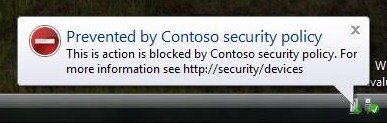
One of the favorite enterprise features of Microsoft® Windows Vista™, USB device installations, gets even better in RC1. You may have heard stories of some IT departments going so far as to pour glue in USB ports in an attempt comply with data protection regulations, by preventing users from copying sensitive information onto external storage devices—or to protect from malicious software that could be on the device. In Windows Vista there’s a better, less messy way. You can use group policy to control what types of devices users can and cannot install. What makes it better in Windows Vista RC1 is that you can now display a custom error message to the user explaining why their device will not install, so they don't have to call the help desk.

Here’s how you set up the policy to do this.

First, you need to configure the policy to block all devices. This policy is located under Computer Configuration Administrative Templates System Device Installation Device Install Restrictions. Set the Prevent installation of devices not described by other policy setting to Enabled.

With this policy set, the user will be blocked from installing any new devices. Now that you have blocked all new devices, you can go back and use the other settings to block certain devices and allow others. With the right configuration, you can prevent data from inappropriately being put on this device while still using it for Windows ReadyBoost. (Note: If you are following along, you will not be able to block a device that has already been installed on the PC before. You will either have to try a different device, or remove the previous device from device manager.)

The next step is to set the custom message that the users will see. You can do this by configuring the “Display a custom error message...” settings.

This is just one of the many data protection features in Windows Vista including BitLocker™ Drive Encryption and improvements in EFS.

Monday, October 09, 2006

Reset Administrator's Password of Windows NT/2000/XP/2003

This article is about how you can reset your windows administrator's password. This article is only for the educational purpose and it should not be used for criminal or miscellaneous activities. These softwares really work however i dont take any responsiblity for any harm caused by these softwares. So use them at your own risk. But these methods works 100%.

EBCD – Emergency Boot CD

Download EBCD

EBCD is a bootable CD, intended for system recovery in the case of software or hardware faults. It is able to create backup copies of normally working system and restore system to saved state. It contains the best system software ever created, properly compiled and configured for the maximum efficient use. The most interesting part is that its FREE.


EBCD will be very useful when you need to:


  • Copy/move files (with long names, not necessary in CP437 encoding) from/to the disk but OS which can handle them (windows, Linux...) cannot boot. In particular, you may create a backup copy of normally installed and configured Windows and later restore Windows from such backup copy. So, in the case of fault OS itself and all software and its settings can be restored in 5-10 minutes.


  • Perform emergency boot of Windows NT / 2000 / XP. When the loader of this OS on the hard disk is damaged or misconfigured, you are able to load OS using another, standalone loader from this CD.


  • Recover master boot record of HDD. This allows to boot OS after incorrect uninstallation of custom loader (LILO, for example), which made all OS on your PC not bootable.


  • Delete, move, copy to file (image) and re-create partition from file. Image transfer over network is also supported: so you may configure one PC and then make contents of hard disks of other PCs same as contents of the hard disk of the first one.


  • Change password of any user, including administrator of Windows NT/2000/XP OS. You do not need to know the old password.


  • Recover deleted file, even file re-deleted from Windows Recycle Bin, and, in contrast, wipe single file or a whole disk so that it will be impossible to recover it in any way.


  • Recover data from accidentally formatted disk. Sometimes it helps to recover data from the disk, damaged by a virus.


  • Recover data from a floppy disk, which is not readable by OS. Format 3.5" disk for 1.7 Mb size.


Also the disk includes full set of external DOS commands, console versions of the most popular archivers/compressors.

Moreover, emergency boot CD includes minimal Linux distribution (Rescue Linux distribution) which may be very useful to a professional user.

Download EBCD


Windows Password recovery

http://www.loginrecovery.com

This site provides a tool to recover lost Windows XP passwords. It works for administrator and user accounts, it doesn't change the password just tells you the old one. It works with encrypted files (EFS) and password hashes. It even works if no passwords at all are known for the machine (as long as you have another computer with internet access to view this website with).

Author claims it also works with Windows NT and Windows Server 2003 and Windows Longhorn, but the BEST thing about it is the fact that it won't reset your passwords, but simply reveal them for you to remember and then use.

Give it a try. The author would like to receive feedback. There is a free service as well as a priority service that will retrieve your passwords within minutes. The fee for the priority service is very cheap, and is really just to cover server costs.

Usage, instructions and additional information can be found at

http://www.loginrecovery.com


Saturday, October 07, 2006

Windows Vista’s New and Improved Remote Assistance

This article shows what you can expect from the new version of Remote Assistance.

When Microsoft released Windows XP, it contained a lot of features that weren’t found in previous versions of the Windows operating system. One of the best new features in Windows XP was Remote Assistance. Remote Assistance relieved a company’s support staff from having to physically travel to each computer that had a problem, and greatly reduced the amount of time required for telephone support. As great as Remote Assistance is however, it does have its shortcomings. There are some network configurations that it just doesn’t work with, and it can be considered as somewhat of a security risk. In Windows Vista, Microsoft has completely revamped the Remote Assistance feature. In this article, I will show you what you can expect from the new version of Remote Assistance.

Efficiency Improvements
One way that Remote Assistance has been improved is that it is designed to be more efficient. The Windows XP version of Remote Assistance tended to be difficult to use in low bandwidth situations. As such, the Windows Vista version of Remote Assistance has been re-engineered to use less bandwidth. In doing so however, one feature was removed. In the Windows XP version of Remote Assistance, it was possible to verbally communicate with the person that you were helping. The verbal communications feature has been removed from the Windows Vista version of Remote Assistance in order to conserve bandwidth.

Compatibility
This brings up an interesting point about compatibility. Most organizations probably aren’t going to switch all of their users to Vista overnight, so you might be wondering about whether or not the Vista version of Remote Assistance is compatible with the Windows XP version. The two versions are mostly compatible, but there are a few minor issues (including the verbal communications issue that I just mentioned).

One issue is that Vista’s version of Remote Assistance supports pausing a session. Since the Windows XP version didn’t support this feature, someone who is using Vista to assist someone running Windows XP can pause the session, but the person who is running Windows XP will not be notified that the session has been paused.

A more important issue is that a person who is running Windows Vista will not be able to offer assistance to someone who is running Windows XP. Therefore, if your organization’s help desk depends on Remote Assistance, then you will probably want to make sure that the help desk staff are the last ones upgraded to Windows Vista.

Using Remote Assistance
Establishing a Remote Assistance session through Windows Vista is simple. As you may recall, in Windows XP, Remote Assistance was part of the Help and Support Center. In Vista, Remote Assistance has been made into a stand alone application. You can access Remote Assistance by clicking the Start button and selecting All Programs Maintenance Remote Assistance. Upon launching Remote Assistance, you will see a screen giving you the choice of either inviting someone to help you or offering to help someone, as shown in Figure A.

Figure A: Upon launching Remote Assistance, you will see a screen giving you the choice of either inviting someone to help you or offering to help someone

If the person who is running Remote Assistance is the one who needs help, they would select the Invite Someone You Trust To Help You option. At this point, the person who is asking for help would see a screen asking if they want to use e-mail to send an invitation, or if they would like to save the invitation as a file.

This particular part of the process probably seems very similar to the Windows XP version at first glance. There is one very important difference though. In Windows XP, you could e-mail an invitation to someone, or you could save the invitation to a file and give it to the recipient some other way. However, just because the recipient had an invitation, it did not necessarily mean that they could connect to the person who needed help. Both machines either had to have publicly accessible IP addresses, or they had to be a part of the same network. In Windows Vista however, Remote Assistance now supports NAT traversal. This means that if one of the users involved in the Remote Assistance session happens to be behind a NAT firewall, the session can still be established, so long as the necessary firewall ports are open.

When the person who needs help creates the invitation, they are prompted to assign a password to the invitation (six character minimum). After doing so, the invitation goes out, and the user’s machine opens a window similar to the one that’s shown in Figure B, and begins waiting for a connection.

Figure B: This is the Remote Assistance window that is displayed on the computer of the person who asked for help

The recipient of the invitation then opens the invitation and is prompted to enter the password that was assigned to the invitation by the user who is asking for help. Simply entering the password does not establish a full blown Remote Assistance session though. The person who sent the invitation will see a pop up message asking if it is OK for the Remote Access session to being. This prevents an administrator from establishing a session without the user’s knowledge.
The dialog box shown in Figure B remains present throughout the Remote Access session. As you can see in the figure, there are a couple of new capabilities. The parties involved in a Remote Administration session can now pause a session, chat, or transfer a file. Another thing worth noting is that even after a Remote Assistance session has been established, the helper can not control the user’s PC unless the user gives them permission to do so. The helper’s console looks similar to the one shown in Figure B, but they also have a Request Control icon. If the helper clicks this icon, the user requesting assistance has to respond to a prompt in order to hand over control of their machine.

Overall there are a lot of impovements coming in Windows Vista. Goto Microsoft website for more information www.microsoft.com

Cool Yahoo Messenger Commands

Hi again. Some times yahoo server goes down and everyone whos chatting just tear their heads off. Lot of guys cant even change their chatrooms. Or if u want to know the chatroom of a person u want to follow then i got just some special gift for you. Here is a list of commands that could be executed in a yahoo chat room.

/help calls up the help file
/cls clears the screen
/save saves the current chat session transcript
/leave exits current room
/join roomname joins roomname
/goto username joins the chat room that username is currently in
/follow username user will follows username whenever the user changes rooms
/think text posts text in this format "oO(text)"
/tell username text -- allows you to send a text to username with opening a window
/invite username invites username to the current room
/webcam starts your webcam
/version displays the program version
/version username sends the program version to username
/time shows the time
/roll number rolls the number of dice
/logoff closes the client
/ignore add username will add username to your ignore list
/ignore remove username will remove username from your ignore list :Text formats the text as an emotion

These are links to some cool music sites
www.cooltoads.com
www.masti4india.com
www.raaga.com
www.smashits.com

Friday, October 06, 2006

Hi everyone. If anyone wants links for some cool yahoo softwares or latest tips and tricks then this is just the right place for you. This site will also feature some security tricks for windows and networking essentials. If u have any query feel free to write.